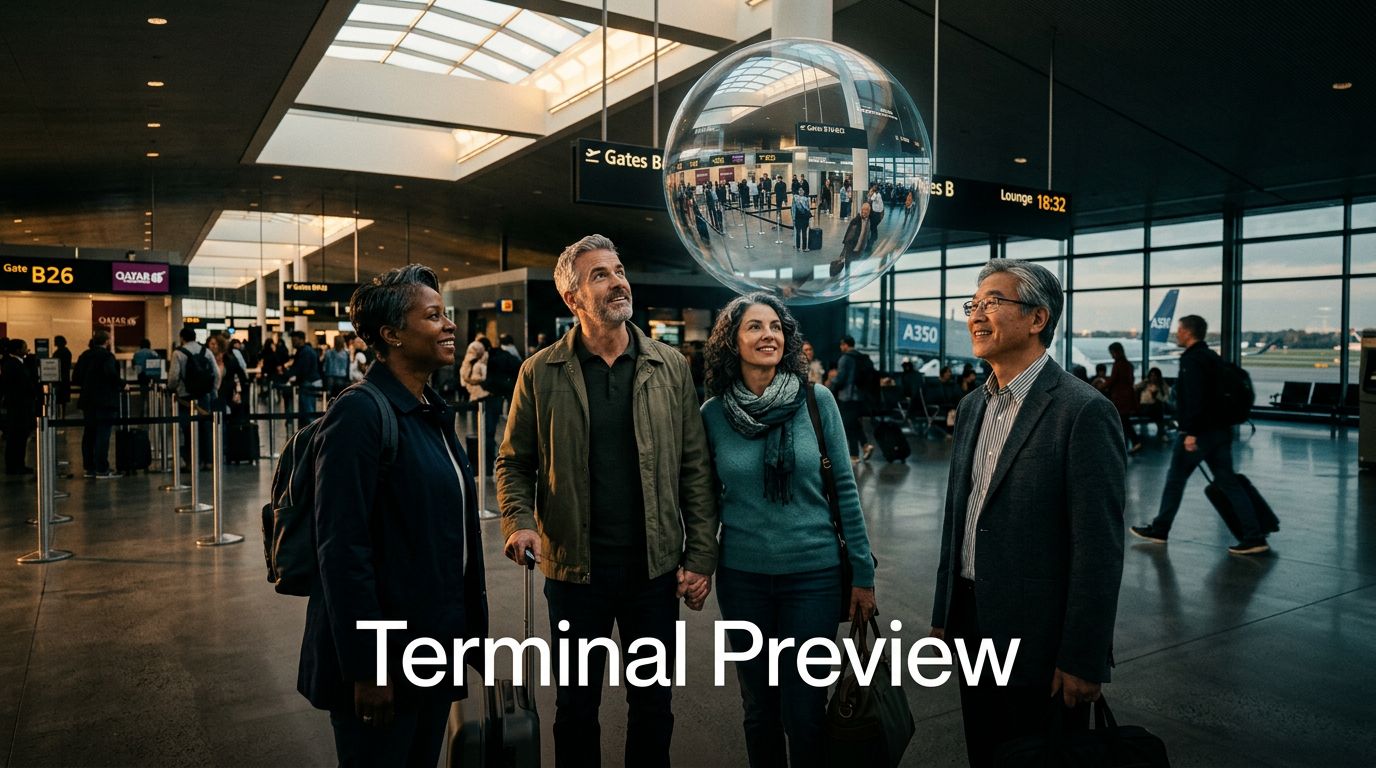
Before I fly through a new airport, I watch a few YouTube 360 videos. That small step helps me replace guesswork with a mental picture of the terminal.
I don’t treat those videos like live maps. I use them to spot the flow, calm my nerves, and plan my next move before I leave home.
What I look for before travel day
When I preview an airport terminal in 360, I focus on the basics first. I want to know where check-in desks sit, how security lines feed into the concourse, where gate zones begin, and how baggage claim is laid out. If I have a connection, I also watch for shuttle trains, escalators, long hallways, and signs that suggest a split between domestic and international transfers.
I pay close attention to restrooms, lounges, water stations, and dining areas near likely gate clusters. For parents, that can mean fewer last-minute scrambles. For nervous flyers, it can feel like walking the route once before the real trip.
I also search for specific phrases, such as airport name plus terminal 360, baggage claim walk-through, or transfer between terminals. If I’m flying solo, a simple first-time airport guide adds useful context.
Airport videos are previews, not promises. Stores, checkpoints, and routes can change.
Because of that, I always verify terminal numbers, lounge rules, and airline procedures with the official airport site and my airline app.
How I use YouTube 360 controls on different devices
The controls are easy once I try them once or twice.
- On my phone or tablet, I open the video and move the screen with my finger. If 360 motion is enabled, I can also tilt the device to look around. Full-screen mode makes details easier to spot.
- On a desktop or laptop, I click and drag inside the video window. I slow down playback when I want to study a security entrance or trace the path from arrivals to baggage claim.
- On a VR headset, I get the most natural view. If I’m setting up my Meta Quest 3 for the first time, a senior-friendly guide helps, and practice with the Meta Quest interface makes it easier to find VR travel content.
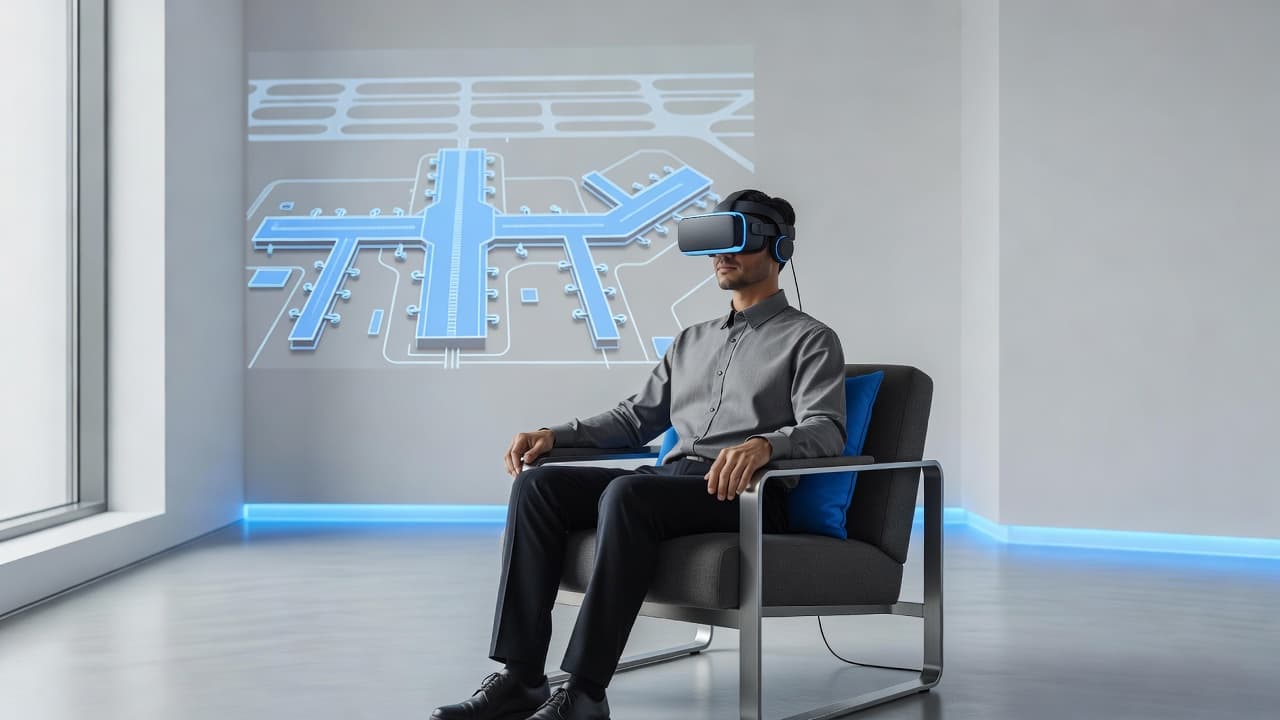
I use the same approach when exploring a destination in YouTube VR, scouting hotel rooms for accessibility, or practicing busy train stations before I arrive.
Who gets the most value from this
This habit helps almost anyone, but I think it matters most for anxious flyers, travelers with kids, and people with tight connections. It’s also great for older travelers, because comfort, clear routes, and trustworthy details often matter more than speed. Helpful discussion threads on large airports and mobility concerns can add practical ideas.
For me, terminal previews fit into bigger trip prep. They work well alongside passport and visa planning, travel insurance, long-haul seat choices, medication planning across time zones, and packing light with easy-rolling luggage.
Final thoughts
A 360 airport video won’t tell me everything, but it gives me a calmer start. I can picture security, gate areas, food options, and transfer routes before the pressure hits.
That matters when I’m overcoming the fear of a first solo flight after 50, or simply trying to feel steady in a crowded hub. If you want more practical travel prep like this, you can Subscribe.
This post may contain affiliate links. If you make a purchase through these links, I may earn a small commission at no extra cost to you.